
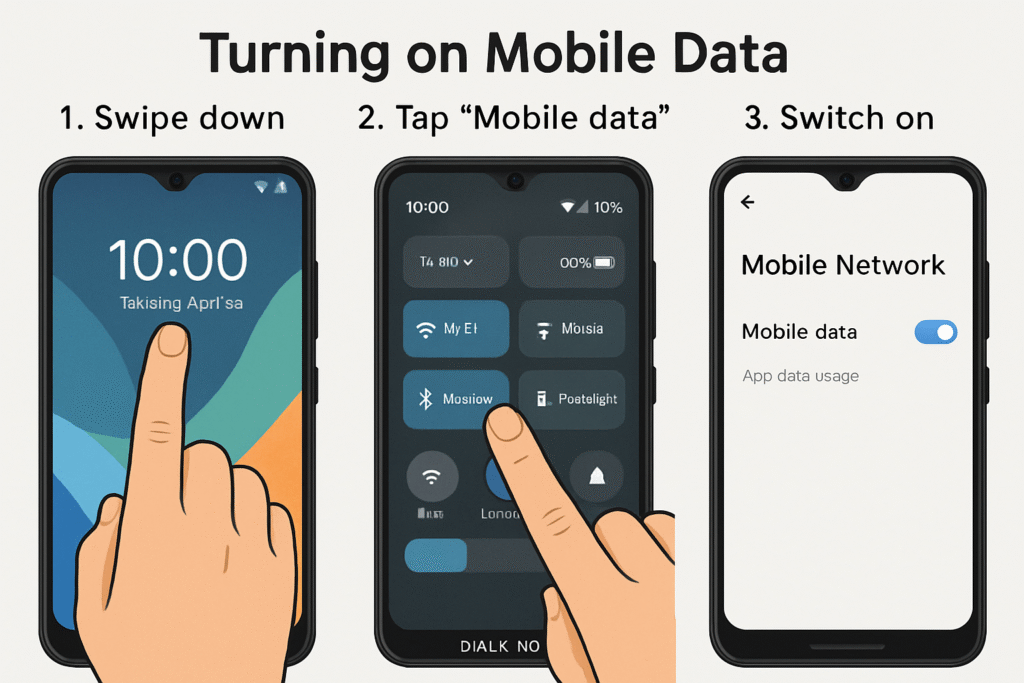
Using mobile data has become a fundamental part of staying connected in today’s fast-paced world. Whether streaming your favorite show, checking emails on the go, or GPS navigation, mobile data is your lifeline when Wi-Fi isn’t available. For owners of the Dialn Nova phone, turning on mobile data is straightforward once you know the steps. Yet, many users still ask: how to turn on mobile data on Dialn Nova phone? This guide simplifies the process for you, combining easy-to-follow instructions, tips, and insights for the best experience.
What Is Mobile Data and Why You Need It
Mobile data allows your phone to connect to the internet using your cellular service provider’s network. Unlike Wi-Fi, mobile data lets you access the web anywhere, anytime as long as you have cellular coverage.
If you travel frequently, don’t have consistent access to Wi-Fi, or rely on apps that update in real-time, mobile data is essential. The Dialn Nova supports 4G LTE and 5G, so enabling mobile data unlocks blazing-fast speeds for most tasks.
Step-By-Step: How to Turn On Mobile Data on Dialn Nova Phone
1. Swipe Down to Open Quick Settings
Starting with the easiest way: from the top of your phone’s screen, swipe down once or twice (depending on your settings) to reveal the Quick Settings panel.
2. Tap the “Mobile Data” Icon
In the Quick Settings, look for an icon that looks like two arrows (one up, one down) or a cellular tower symbol labeled “Mobile Data.”
-
Tap this icon to toggle mobile data on or off.
-
When enabled, the icon will usually be highlighted or colored to indicate active data.
3. Access Settings for More Control
If you want to manage your mobile data more deeply:
-
Open the Settings app from the app drawer or home screen.
-
Scroll to the Network & Internet or Connections section.
-
Tap Mobile Network or Cellular Network.
-
Toggle the Mobile Data switch to “On.”
4. Check Your Data Usage and APN Settings
Within the same Mobile Network menu, you can also:
-
View your mobile data usage statistics.
-
Configure APN (Access Point Name) settings required for your network provider.
Example APN for Nova:net.nova.isfor internet access.
Troubleshooting Tips
If mobile data won’t turn on or you’re experiencing slow connections:
-
Ensure your SIM card is properly inserted and activated.
-
Restart your Dialn Nova phone.
-
Verify that you are in an area with cellular network coverage.
-
Reset network settings: Go to Settings > System > Reset options > Reset Wi-Fi, Mobile & Bluetooth.
-
Contact your service provider if you continue to experience issues.
How to Save Mobile Data
Using mobile data can be costly or limited if you have a capped plan. Here’s how to save data on your Dialn Nova:
-
Turn off mobile data when you don’t need it.
-
Use Wi-Fi whenever possible.
-
Restrict background data for apps in Settings > Apps & notifications.
-
Enable data saver mode if available.
Creative Ideas to Make the Most of Your Mobile Data
-
Set alerts for data caps using your Dialn Nova settings.
-
Use offline maps and download media over Wi-Fi before travel.
-
Balance between 4G and 5G depending on availability to conserve battery.